

EdUHK Video Portal - Panopto
The EdUHK Video Portal, supported by Panopto, allows video management, recording and sharing with security control for teaching and learning purposes. Users can make use of the Panopto recorders in classrooms and lecture theatres for lecture recording and the video assignment submission function on the platform.
Highlighted features include:
- Video clips uploading and sharing
- Streaming to various devices (e.g. desktops, laptops and mobile devices)
- Audio description generation or upload
- Multiple captions or subtitles
- Customised thumbnail generation
- Security control
- Scheduled publishing
- Permalink and embed link generation
- Social media sharing
How to access the EdUHK Video Portal?
To access the EdUHK Video Portal, please visit eduhk.ap.panopto.com (external site, opens in new tab) with any modern web browsers and login with your EdUHK network account and password.
How to use the EdUHK Video Portal?
Upload and publish files
- Make sure you have the video or audio file(s) ready for upload.
- Select “My Folder” from the left column, then select “Add folder” to create a sub folder, if needed.
- You can locate a folder by clicking “Browse” on the left column. Click on a folder to save your video.
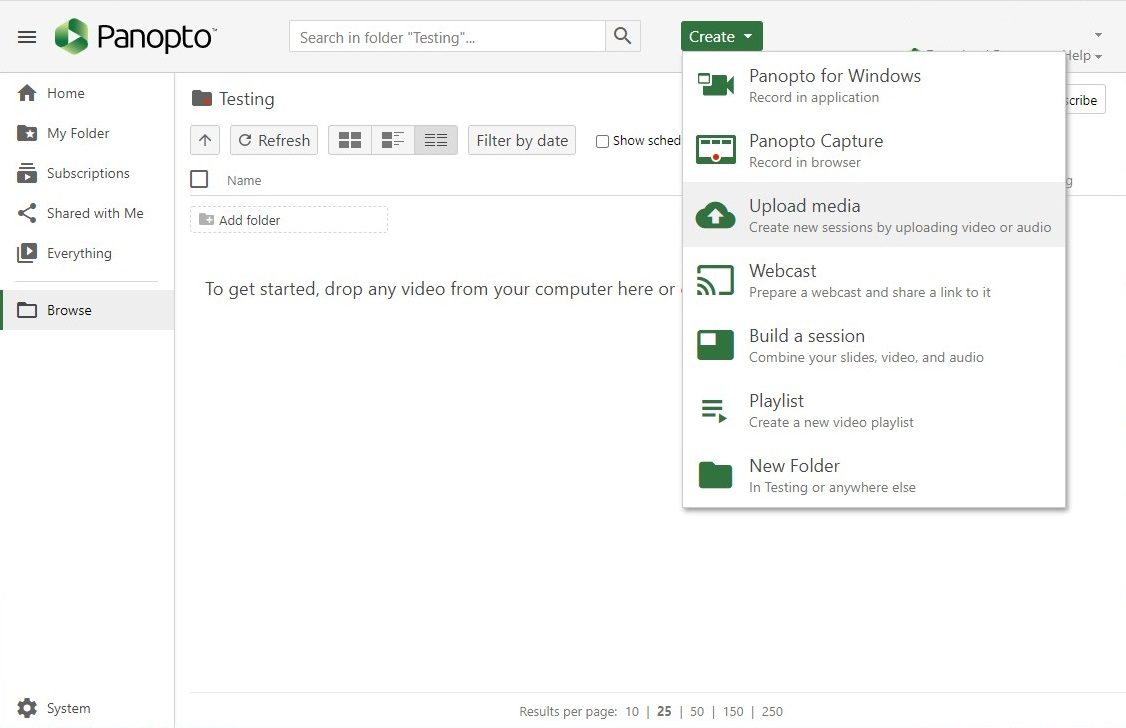
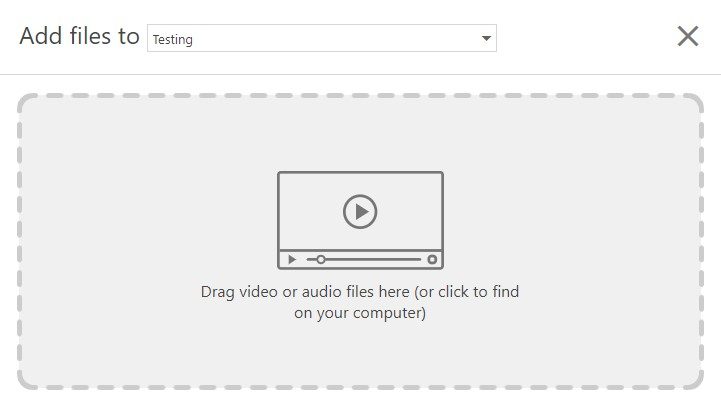
- Click the “Create” button in the top menu bar. Then select “Upload Media”, drag and drop video or audio files on the page or click on the box to select the file location and file on your computer.
- Alternatively, you can drag and drop files directly from the computer to the page.
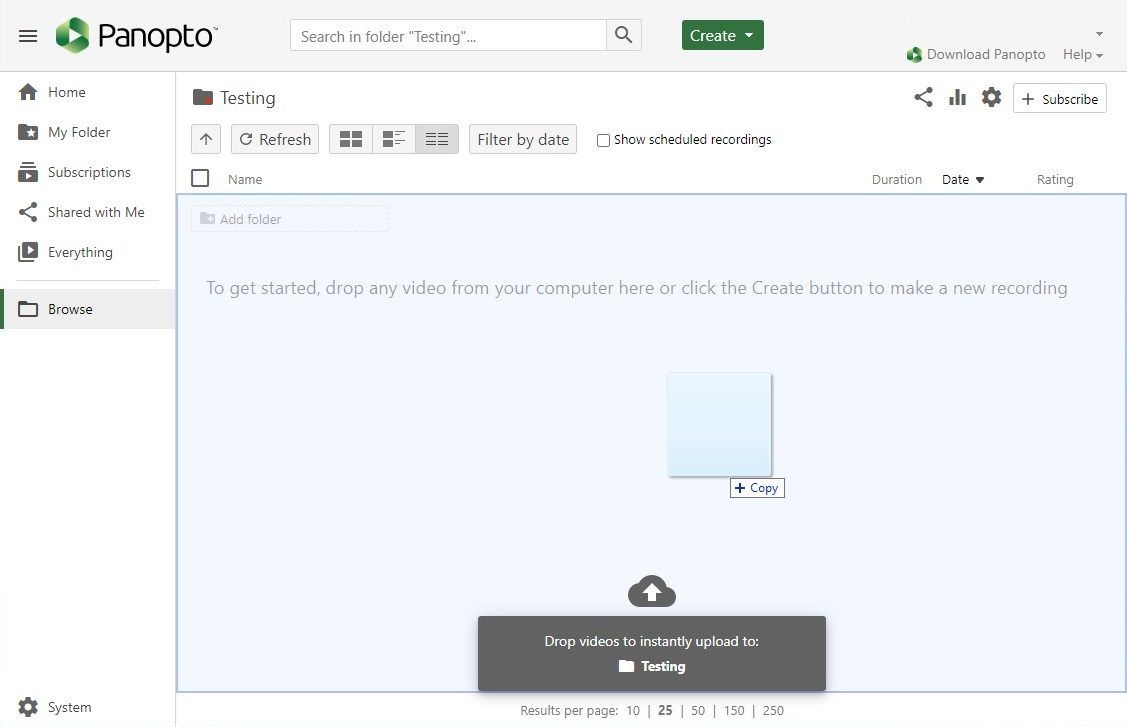
- You can drag and drop multiple files simultaneously.
- Once uploading completes, you can log out and close the window. You can update the user setting if you want to receive an email notification when the file is ready for viewing or editing.
Please see user guides for more information.
Share a file
- Go to your folder, mouse over a file and click on the Share icon.
- In People and groups, type a name, group or email address in the Add people and groups box and select accordingly to share the video.
- If you cannot find the targeted people when typing in the Add people and groups box, you may
- Enter an email address and send the email invitation to the targets
- Invite the targeted people to login Panopto to activate their account
- Once selected, you are able to:
- Send email to notify people of a newly shared video
- Include table of contents and transcript, if available
- Send custom message
- Click the “Send” button to share.
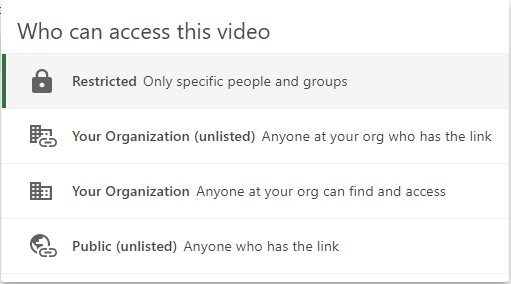
- You can change the access to the video and share a file by copying and sending the link.
Please see user guides for more information.
Security control
The platform allows users to control access by the following groups of EdUHK users.
- EdUHK_Staff --- only EdUHK staff can view the video after login
- EdUHK_Students --- only EdUHK student can view the video after login
- EdUHK_functional_accounts --- only users of functional accounts can view the video after login
Reporting
The platform provides three kinds of video analytic information, including Views and Downloads by Day, Viewer Engagement and Top Viewers. You can also export a report in csv format for retention.
Step by step
Resources and Support
User guides
Support
For more information about the EdUHK Video Portal, please contact Mr. Kwan at 2948 6518.
