

Related pages
Unified Communication and Collaboration System
About the UC&C System
The Unified Communication and Collaboration (UC&C) System provides not only traditional telephone services on a desk phone, but also new features to enhance communication and collaboration. In addition to the basic telephone functions, colleagues can set up call forwarding and manage their personal contact lists on their PCs as well as mobile devices with the softphone app. The UC&C system also incorporates instant messaging and point-to-point audio and video call functions.
Desk Phone

The Avaya desk phone with a colour display supports the following features:
- Handsfree and speaker modes (full duplex)
- Call transfer, call on hold, call forward, call pickup, call hunting, conference call, etc.
- Do Not Disturb (DND) function
- Recent call history - list of incoming, outgoing and missed calls
- Caller ID - incoming caller number/name
- Corporate contact list and personal contact list
- Visual voicemail to view the list of messages and select the action needed
- Visual alerts for incoming calls and voicemails
- Voicemail-to-email forwarding function
Video: Using Avaya J179. (If you cannot view the video, please click here (video, opens in new tab) to open the videos.
Softphone App - Avaya Workplace
With the softphone app called Avaya Workplace, users can access the UC&C system via their mobile devices (e.g. mobile phones, laptop, etc.) anywhere anytime.
Avaya Workplace allows users to:
- Use basic telephone functions with the office phone number
- Make point-to-point audio and video calls
- Listen to and manage voicemail messages
- Make and join audio conference calls
- Access call history
- Send point-to-point text messages
- Set up call forwarding
- Set up DND
- Manage personal contacts
Application for the Softphone App Service
Please submit your application via "F042 - Application for the Avaya Softphone service" (EdUHK system, opens in new tab).
Upon receipt of your application, we will create an Avaya Cloud Account for the softphone service. This process normally takes one to two working days. Once your account is ready, you will receive an email from Avaya Cloud Accounts <noreply@avayacloud.com> with a link to register for the service.
For the installation guides, please go to the Avaya Workplace App User Guides.
Useful Tips on the Use of the Softphone App
Click to expand.
Wait for the Green Tick
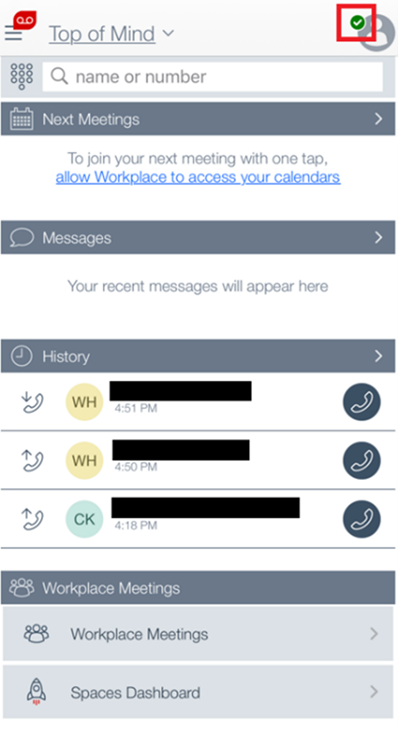
Before making phone calls, wait until a “green tick” is shown in the top right-hand corner of the app. The “green tick” indicates that the app is properly connected.
Restart the App
If the green tick is not shown or if the app does not work properly, try restarting the app.
Connect to SSL VPN
Please avoid connecting to public Wi-Fi when using the app outside the campus. If you continue experiencing problems using the app, try connecting to the University’s Secure Sockets Layer Virtual Private Network (SSL VPN) and restart the app.
Passwords
Users need different passwords for the following purposes:
- To access voicemails: A password is needed to listen to voicemail messages on the desk phone or via the softphone app. Colleagues are recommended to change the initial password as soon as possible on the desk phone.
- To access the softphone app: Colleagues can log in to the Avaya Workplace with their Microsoft 365 accounts and passwords.
International Calls (IDD)
Please follow the procedures and dial format below. (Note: Your departmental IDD telephone account will be charged for any international call placed. Only authorised persons with the departmental passcode can use the service.)
9
+ 0080 + [Country Code + Area Code] + [Phone Number] + # + [Authorisation Code] + #
where
9 +
0080 are the required numbers for call transfer in the UC&C system.
[Country Code + Area Code] are listed on the Directory of International Telephone Numbers (external site, opens in new tab) or Country Code List (external site, opens in new tab).
[Authorisation Code] is an 8-digit departmental passcode for outgoing international calls. Please contact your Departmental Computer Coordinator (DCC) or the general office of your department for the code.
Below is an example of a phone number “12345678” in Singapore (Country code: 65).
e.g. 900806512345678#23456789#
Documents
