

For enhanced security and protection of sensitive information, Microsoft Purview Information Protection (MIP), a tool for labelling and protection, is released for all staff. Upon login with the EdUHK network account on any Microsoft 365 Apps, users can apply an “Internal” label on emails and supported files to restrict access to EdUHK staff only according to the sensitivity of the data. This way, information can be protected when the email or document is accidentally sent to outsiders, as they will not be able to open or view the content.
By default, "No Label" is applied to your email and files. Simply look for the Sensitivity button and select “Internal” on Microsoft 365 Apps such as Outlook, Word, Excel, etc., to use MIP. Users can also apply the label to Office and non-Office files in File Explorer. To read or open a protected item, log in with your EdUHK network account.
How do I know if the "Internal" label is applied to the email or file?
Microsoft Outlook
No label

"Internal" label on
The "Internal" label is applied and the email is encrypted below. Users can also see who turned on the label.

M365 Apps (i.e. Word, Excel, PowerPoint)
"Internal" label on
The "Internal" label is applied and the file is encrypted below.

How to apply the "Internal" label in Microsoft 365 Office Apps?
To apply the "Internal" label, look for the Sensitivity button and select “Internal” on Microsoft 365 Apps. Below is an example in Outlook.

How to apply the "Internal" label on files in File Explorer?
Open File Explorer and right-click on the file. Click "Classify and protect".
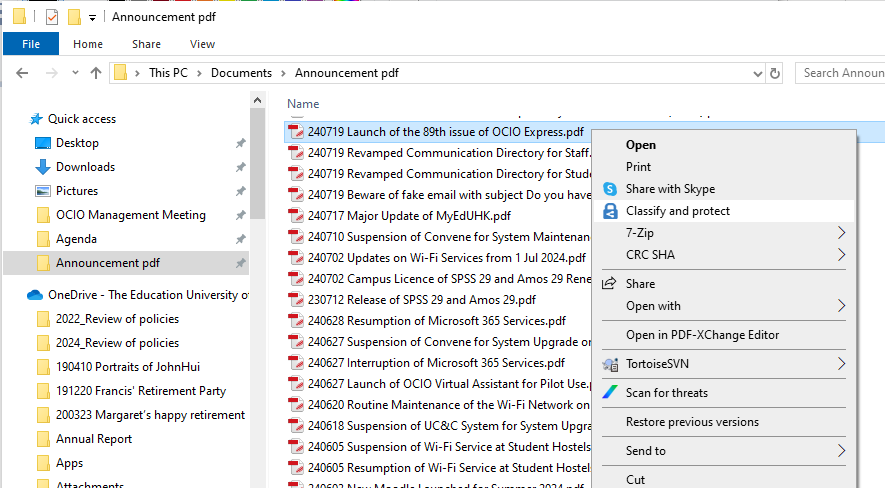
Click "Internal" and "Apply".

To open a labelled file, log in with your EdUHK account.

If the labelled file is a non-Office file, the file extension, except for pdf, is changed.

Protected non-Office files are opened in Azure Information Protection Viewer. Users can view the permission, print or save a new non-protected file if needed.

How to protect a file with custom permissions?
Using “Custom Permissions”, you can set various protection levels in the document for EdUHK staff. For instance, “Reviewer” allows recipients to view and edit only.

The different permission levels are listed below.
| Permission Level | Access Permission differs from the Owner | |||||
|---|---|---|---|---|---|---|
| View | Edit (for MS Office Doc) | Reply | Copy (for MS Office Doc) | Save | ||
| Viewer | ✘ | ✘ | ✘ | ✘ | ✘ | |
| Reviewer | ✘ | ✘ | ✘ | |||
| Co-author | ||||||
| Co-owner (Recipient have full control of the document, including unprotected document) | ||||||
| Only for me | ✘ | ✘ | ✘ | ✘ | ✘ | ✘ |
Types of Files Supported
All Microsoft Office files and most commonly-used file types like .txt, .jpg, .png, .bmp and .pdf are supported. Please see learn.microsoft.com/en-us/information-protection/develop/concept-supported-filetypes (external site, opens in new tab) for the latest list of supported file types.
Users can also use other means of encryption or share the file on shared drives with access control. For other file protection methods, please see www.eduhk.hk/ocio/content/faq-using-encryption-tools-protect-confidential-information.
For enquiries about MIP, please contact IT Help Desk.
