


Microsoft Teams is a chat-based workspace in Office 365. It is a digital hub for teamwork that brings conversations, content and apps together in one place. Microsoft Teams built on capabilities of SharePoint and makes collaboration easy. You can share ideas anywhere on your desktop or mobile devices and have instant access to everything your team needs. Teams is available for all EdUHK members with access to Office 365.
Unlike OneDrive for Business, which is owned by a single user, you can have multiple owners in a team. Staff members do not need to worry about the continuity of a team if you have added others as co-owners. Besides, there is no need to worry about storage capacity as they use what they need and up to a maximum of 25 terabytes (TB) per team site.
Step by step
How to access Microsoft Teams?
Microsoft Teams provides web client, desktop client and mobile app.
Access Teams via a web browser
- Open a web browser and visit portal.office.com (external site, opens in new tab).
- Login with your EdUHK email address and password.
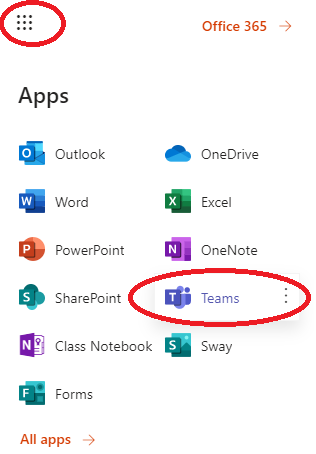
- From the App launcher on the upper left hand side, choose Teams.
- After successful sign in, you can start using Microsoft Teams.
Access Teams via the Microsoft Teams App
- Start Teams.
- For Windows: Click Start > Microsoft Teams.
- For Mac: From the finder menu, click Go > Applications and click Microsoft Teams.
- For mobile: Tap the Teams icon.
- Sign in with your EdUHK email address and password.
Download Client Apps
Get Teams on your device: teams.microsoft.comdownload (external site, opens in new tab).
For mobile users, you can download the app at:
- Available on:
- For iOS -
 (external site, opens in new tab)
- For Android -
 (external site, opens in new tab)
Features highlight
The following key features are included in MS Teams:
- Chat - It is a persistent chat workspace to store threaded conversations, including private chats with classmates/colleagues/guests or group chats among team members. Chat history can be reviewed by any current and new members.
- Conference Call – Audio/video conference and screen sharing are available.
- Channel - A channel is a discussion topic in a team. You can create channels for different subjects, projects and etc.
- Tab - Teams also allows you to add Tabs to frequently used files on OneDrive document library, OneNote Online, SharePoint as well as other cloud services and external websites.
- Multi-platforms – You can use MS Teams on Outlook on the Web (web browser), MS Teams client as well as mobile devices running on iOS, Android OS and Windows Mobile.
How do I chat in Teams?
Messaging, or chat, is the most common way to communicate in Teams. With chat you can jump back into a conversation with an individual or group at any time, and you will always have a full record of the previous conversation. Chat also allows you to share files, audio clips, videos and more all directly within the thread of the chat.
You can visit the "Take a Teams guided tour - Chat (external site, opens in new tab)" for a step by step instructions. For details, please visit "Six things to know about chat in Microsoft Teams (external site, opens in new tab)".
Step by step
Using Microsoft Teams for Video Meeting
Video Meeting is one of the features on Teams. You can either schedule a meeting or start an instant meeting.
Start an instant meeting
- Open Teams
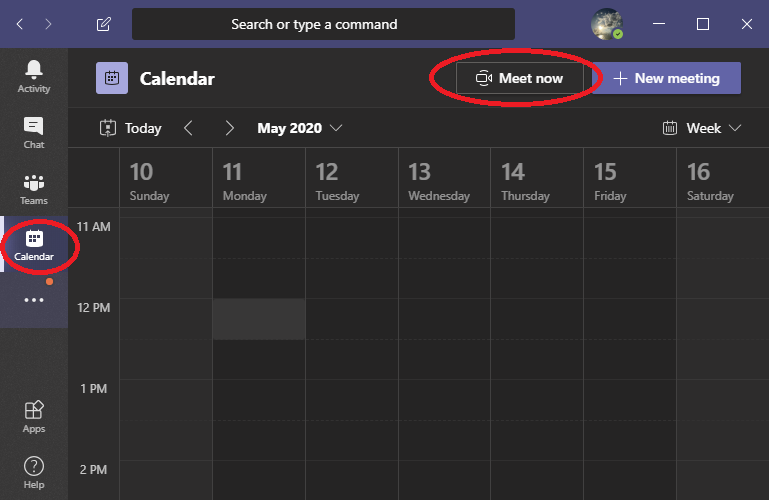
- Click "Calendar" from the left menu. Then click "Meet now".
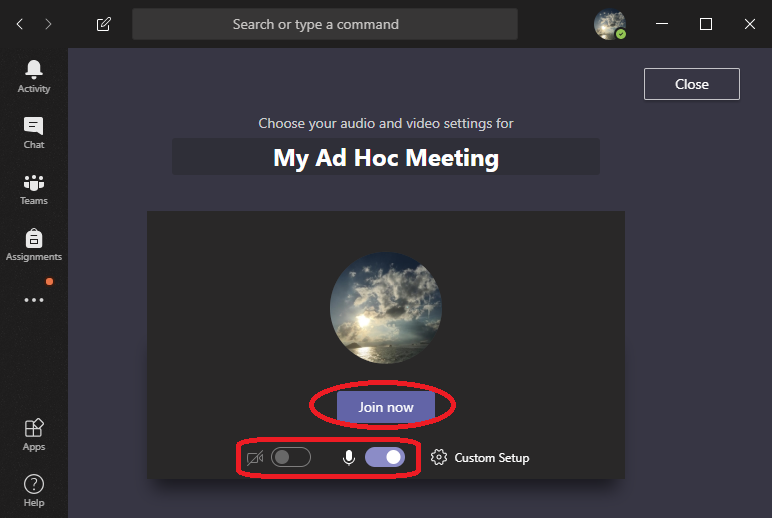
- Enter the meeting title and choose whether you want to use video, and pick your preferred audio source.
- Click "Join Now" to start the meeting.
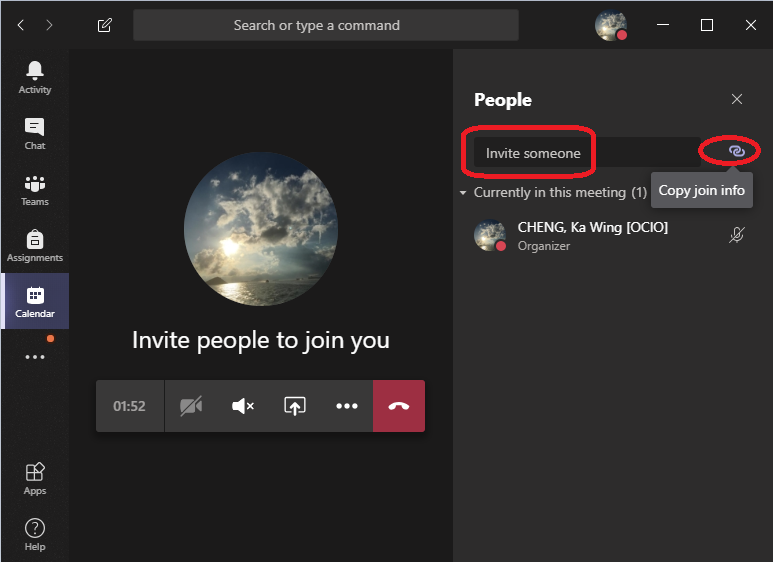
- To invite people to join, you can either enter the name of the person (for EdUHK members) or click the "Copy Join Info" to copy the invitation link to send to the invitees.
Schedule a Teams meeting using Outlook.
Your calendar in Teams is connected to your Office 365 calendar. In other words, when you schedule a meeting in Outlook, it will show up in Teams, and vice versa.
- Open Outlook.
- Go to the Calendar view.
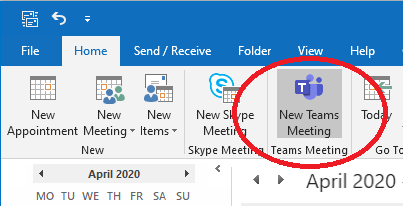
- Click "New Teams Meeting" from the ribbon bar.
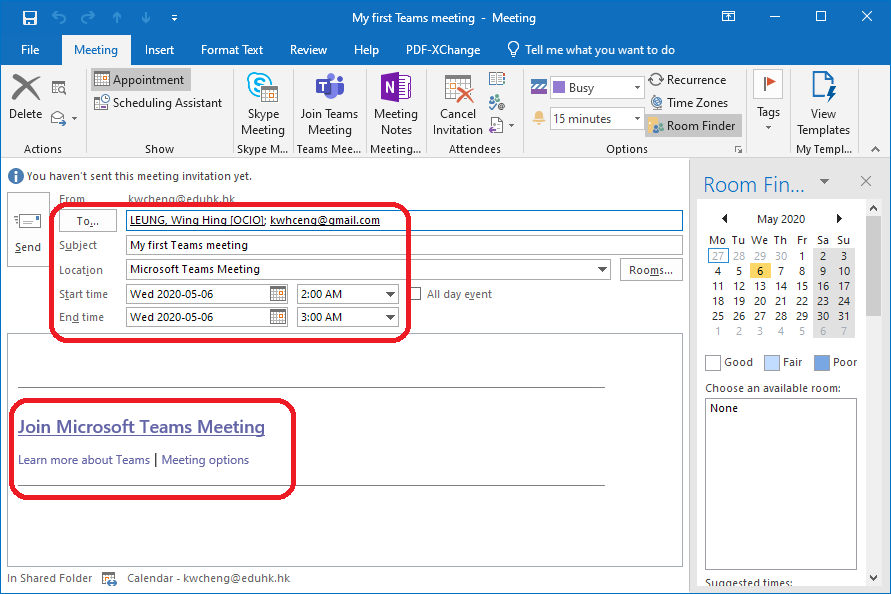
- Add invitees under “To” Field. Add your meeting subject and select the start time and end time.
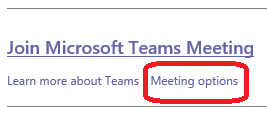
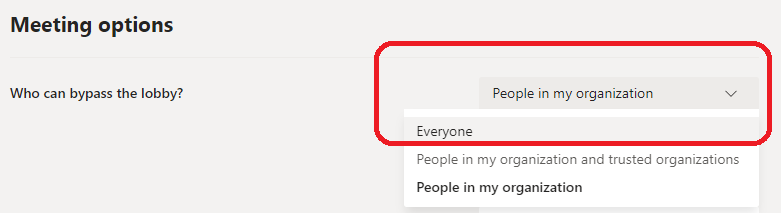
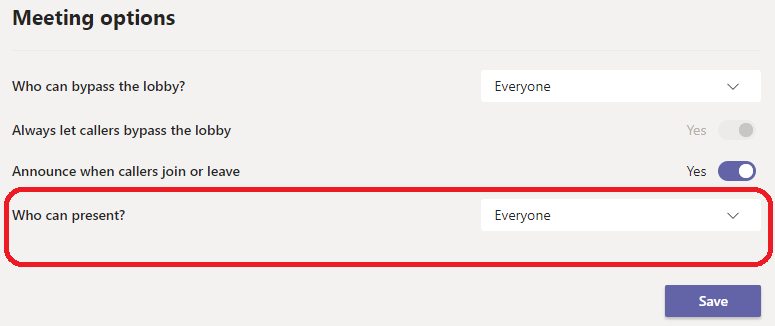
- Teams allows you to invite people from outside your organization, including those who do not have a Teams license. To do so, click Meeting Options to set who can bypass the lobby (i.e. waiting room) and who can present.
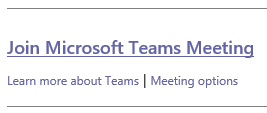
- [Optional] If you want to send the invitation URL through other means, you can copy the meeting link named "Join Microsoft Teams Meeting" from the meeting details.
- After all the meeting details are added, click ”Send” and the meeting invitation will be sent to the invitees.
For details, please visit Schedule a Teams meeting from Outlook (external site, opens in new tab).
If you would like to schedule a meeting using Teams directly, please visit Schedule a meeting in Teams (external site, opens in new tab).
Step by step
Join a Microsoft Teams Meeting
To join a scheduled meeting that you have been invited to:
Join a meeting using Teams
If you have Teams installed:
- You can use the invitation link to join a meeting.
- Click the "Join Teams Meeting" link in your invitation.
- Click "Join Now".
Join a meeting using a web browser.
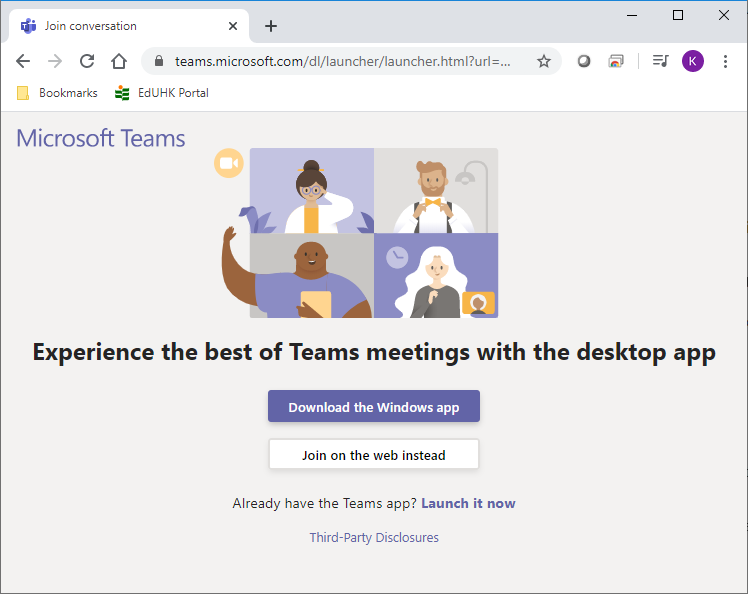
If you don't have Teams, you can join on the web instead:
- When you open invitation URL from a web browser, you will be prompt for two choices. Download the Windows app or Join on the web instead.
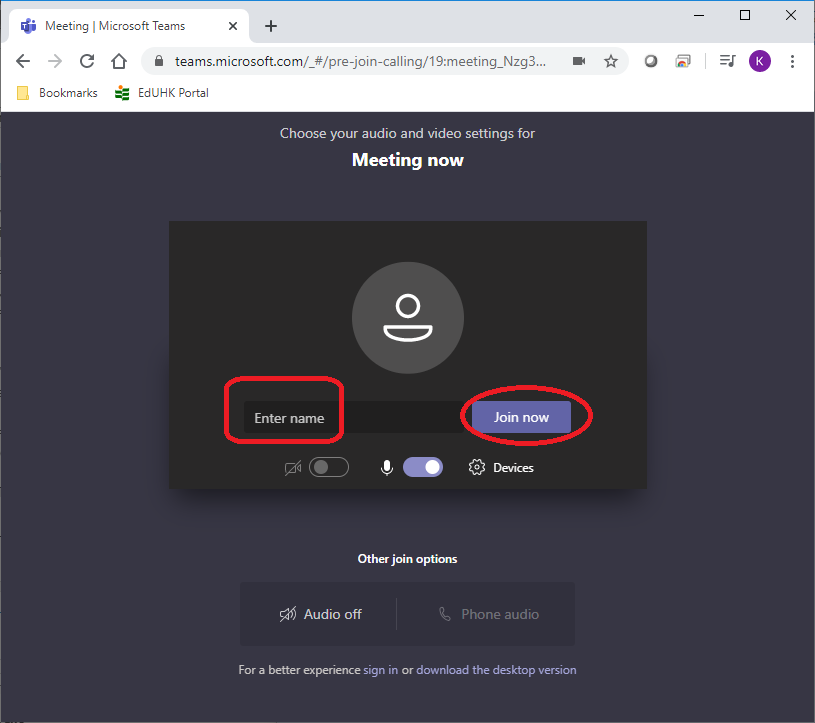
- If you select to join via web, type in your name and select Join now.
- If you have a Teams account, select sign in to view the meeting chat and more.
- Choose the audio and video settings you want.
- Depending on meeting settings, you'll go to a lobby where attendees can admit you.
Related pages
Show your screen during a meeting
In Microsoft Teams, you can show your desktop, a specific app, presentation, or any file while in a meeting.
For details, please visit:
Step by step
Assign roles to each participant
If you're organizing a meeting with multiple attendees, you may want to assign roles to each participant to determine who can do what in the meeting. There are two roles to choose from: presenter and attendee. Presenters can do just about anything in a meeting, while the role of an attendee is more controlled. For details, please visit "Roles in a Teams meeting (external site, opens in new tab)".
Make a presenter/attendee
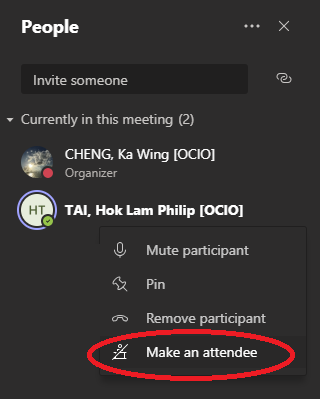
You can make a participant as a presenter or attendee during the meeting.
- Click the "Show participants" icon in the meeting controls.
- Find the person you want to be a presenter in the list.
- Right click the person and choose "Make a presenter.
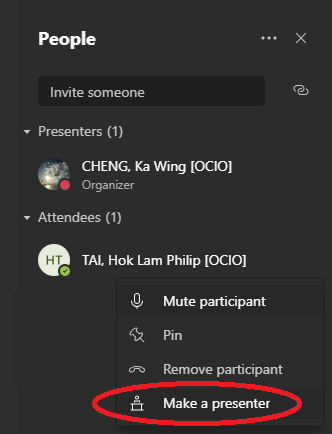
- Click the "Show participants" icon in the meeting controls.
- Find the person you want to be a presenter in the list.
- Right click the person and choose "Make a attendee".
Step by step
Enable Together mode in a Microsoft Teams Meeting
To enable Together mode in a Meeting
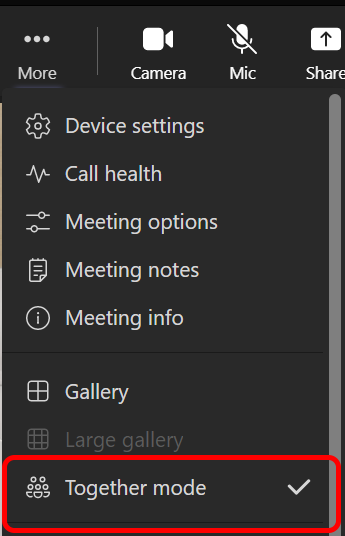
Enable Together mode in a Meeting with Teams on Windows/Mac
- Click the "More" button.
- Click the "Together Mode" button.
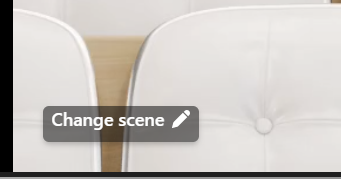
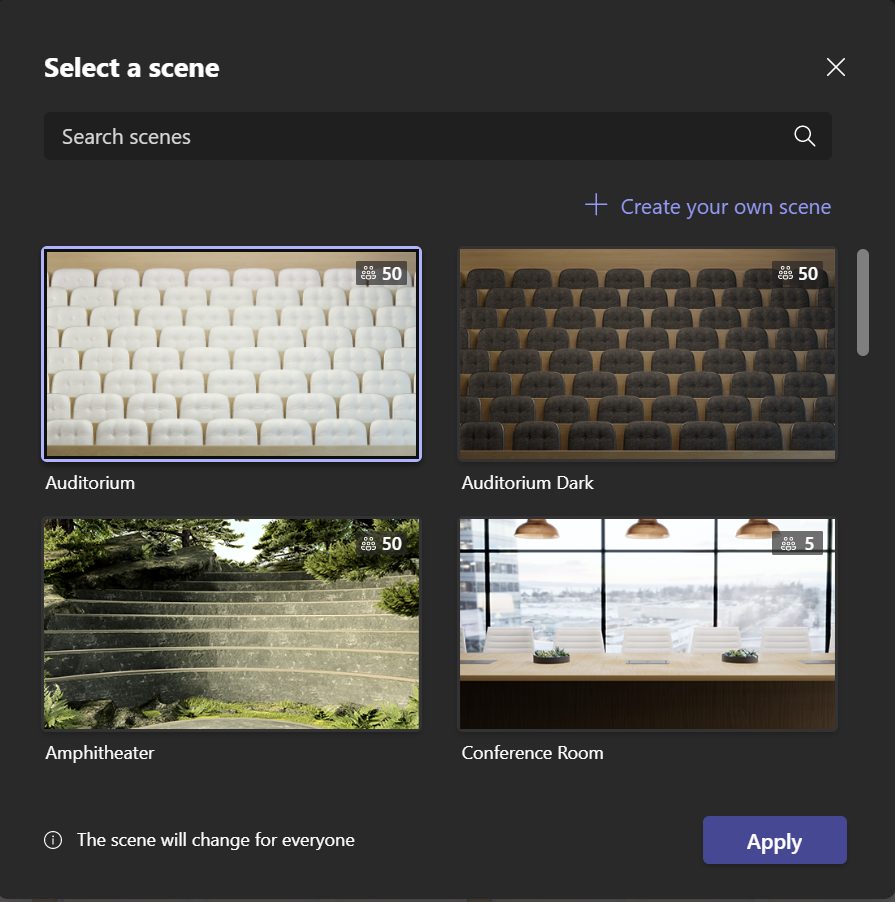
- Click the "Change scene" button at the left bottom corner of the meeting.
- Select yout favourite scene and click the "Apply" button at the right bottom corner of the meeting.

Enable Together mode in a Meeting with Teams on iOS
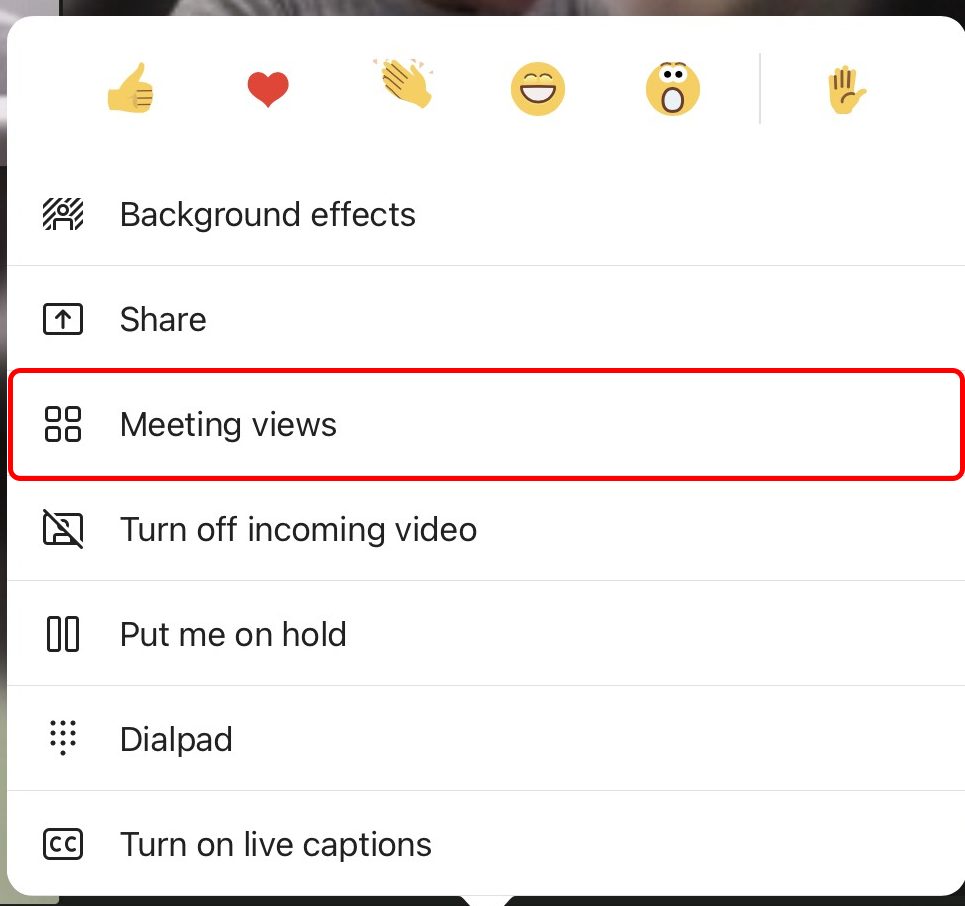
- Tap the ....
- Tap the "Meeting views".
- Tap the "Togther mode".


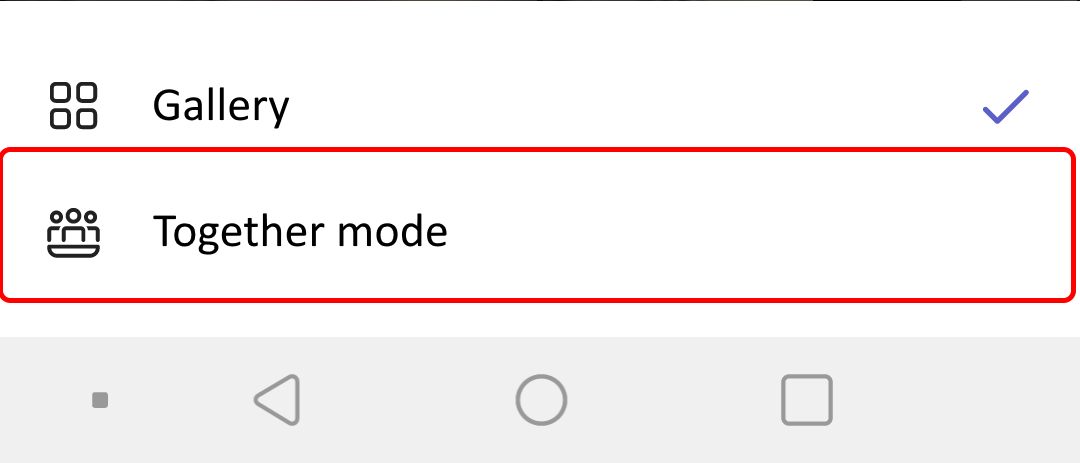
Enable Together mode in a Meeting with Teams on Android
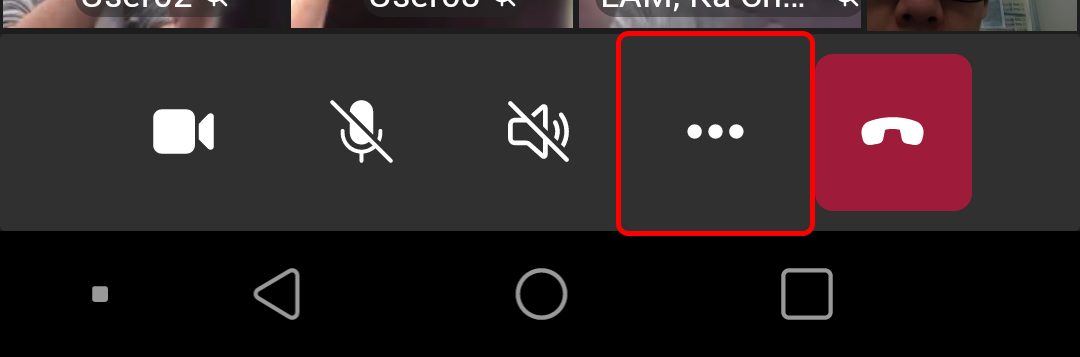
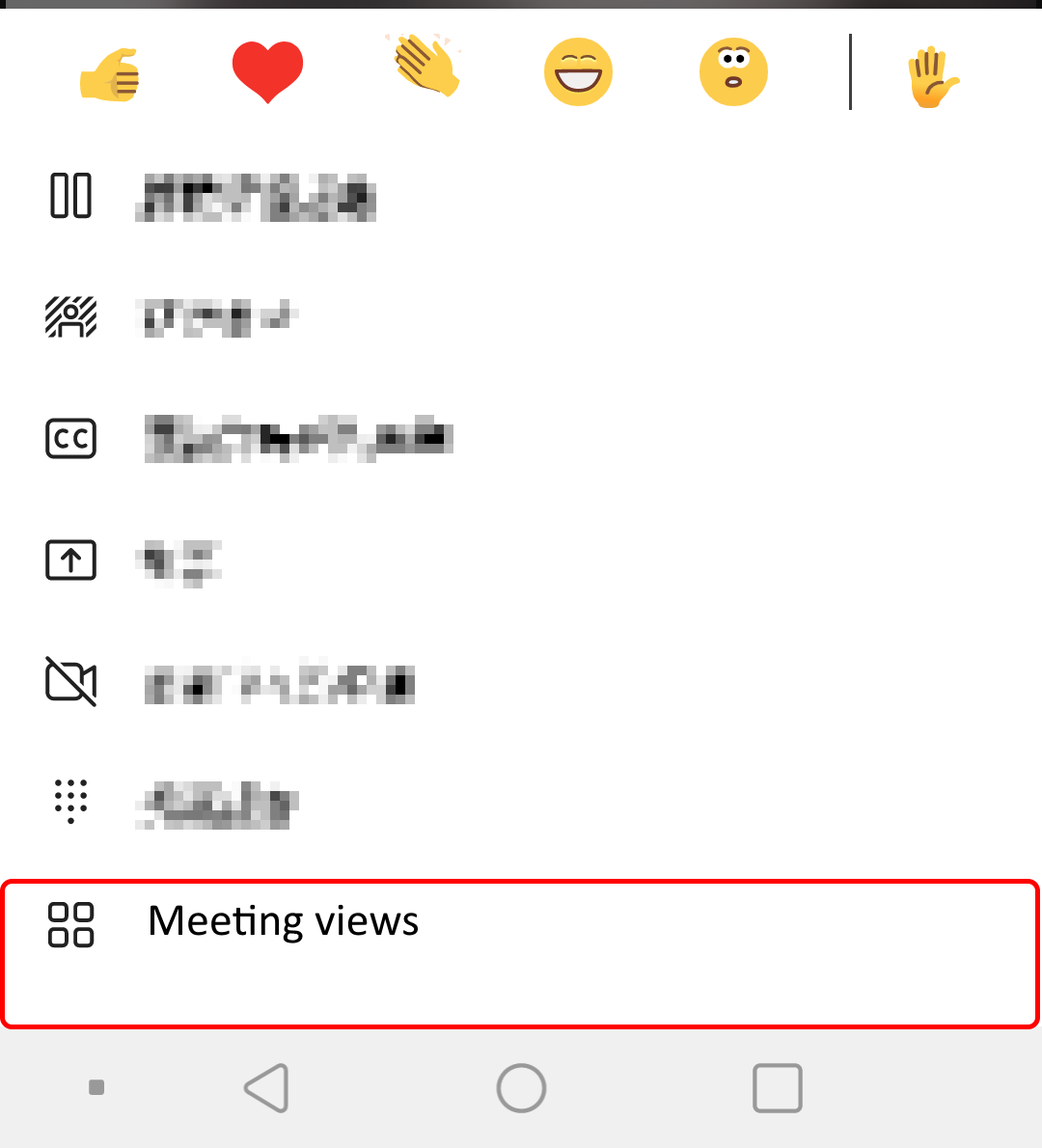
- Tap the ....
- Tap he "Meeting views".
- Tap the "Togther mode".
Limits and Specifications
For details, please visit docs.microsoft.com/en-us/microsoftteams/limits-specifications-teams (external site, opens in new tab).
Resources
For more guides and FAQ, visit Microsoft Teams Help Center (external site, opens in new tab).
